Edge Server Registration
1. Edge Server Registration
Register information about the Edge server configured on-premise.
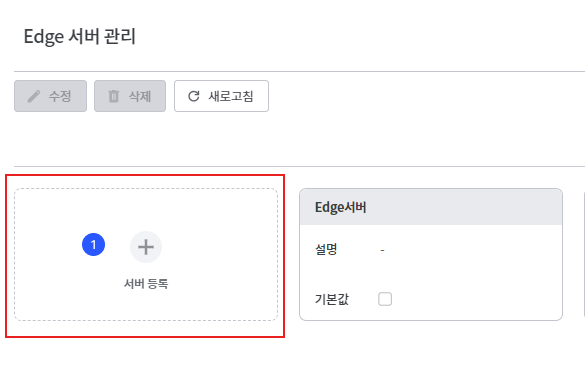
- Click the [Register Server] button.
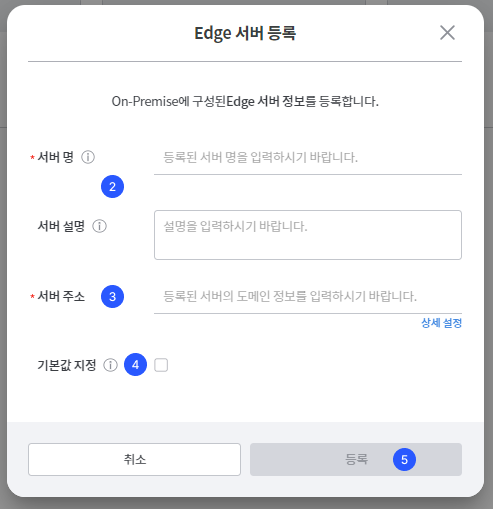
- Enter the server name and server description.
- Set the domain address of the Edge server. You can change the detailed address through [URL Detailed Settings].
- Select whether to set a default value. The server designated as the default will be displayed at the top of the list.
- Click the [Register] button.
URL Detailed Settings
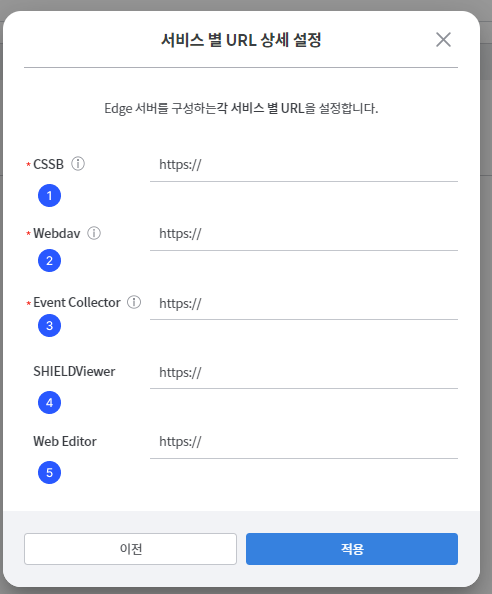
| item | Explanation |
|---|---|
| CSSB | URL of the Cloud Storage Security Broker role |
| Webdav | URL for Web Distributed Authoring and Versioning |
| Event Collector | URL of the Event Collector role |
| SHIELDViewer | Viewer URL for viewing files converted to PDF |
| Web Editor | URL that supports Hancom Office web editing |
2. Modifying and Deleting Edge Servers
Modify and delete registered Edge servers.
Modify Edge Server
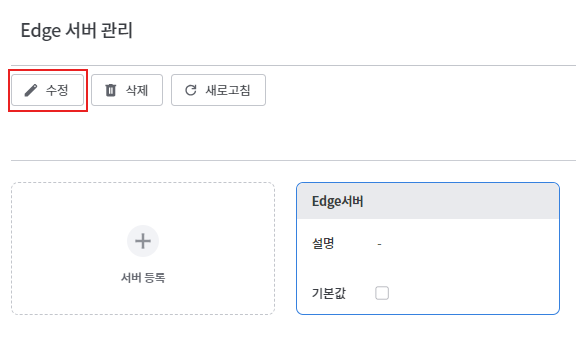
Click the edit icon in the Edge server list.
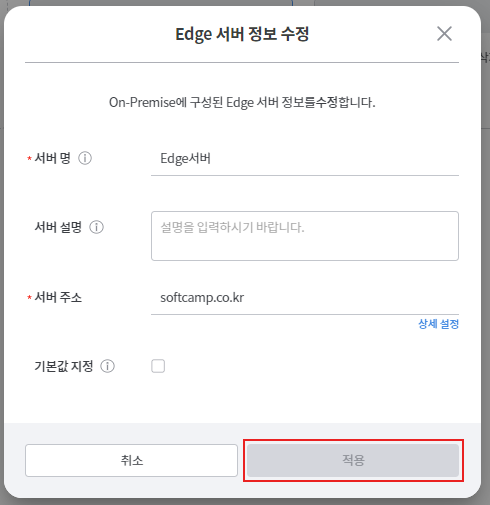
Save after modifying the content or changing the default setting.
Delete Edge Server
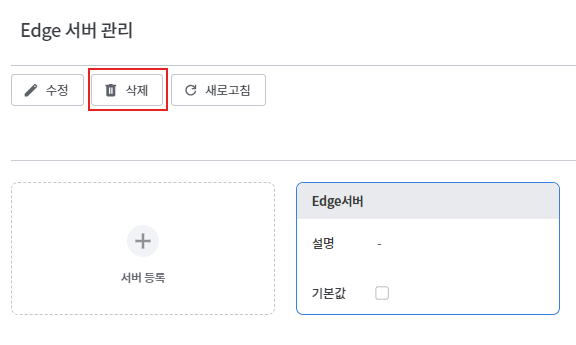
Click the delete icon in the Edge server list.
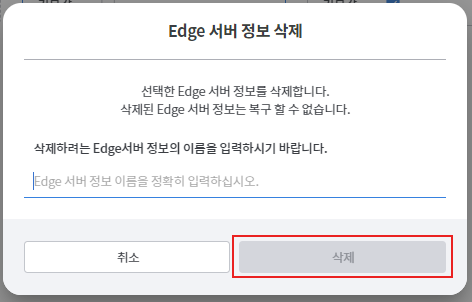
Enter the server name of the Edge server you want to delete and click the [Delete] button.